
Installing themes purchased from WpOpal is quite simple and easy. Below, we will guide you on how to install a demo from a theme purchased on wpopal.com:
Step 1. Login account
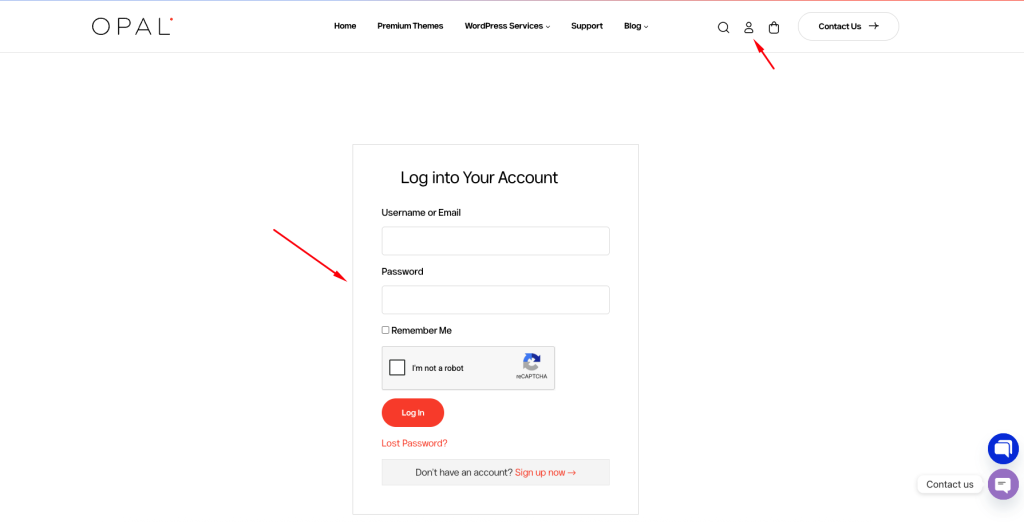
Visit https://wpopal.com/login/ and log in to your account. Alternatively, click on the account icon in the website header
Step 2. Download theme
After successfully logging in, click on Purchases & Downloads
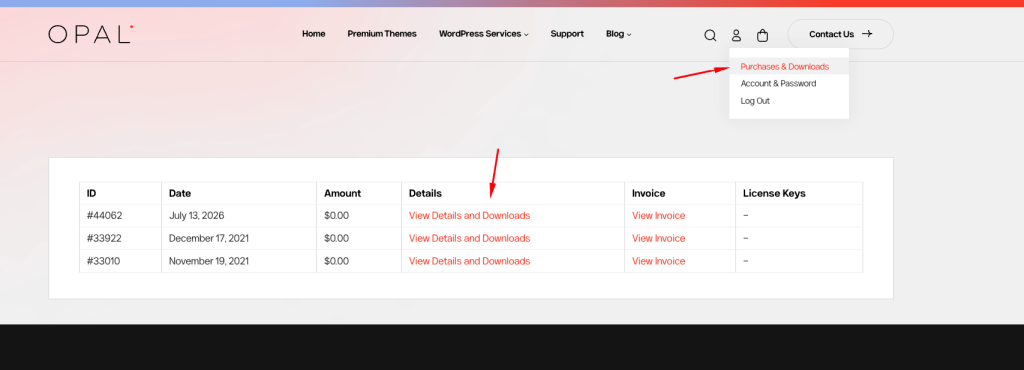
Click on View Details and Downloads to go to the theme download page.
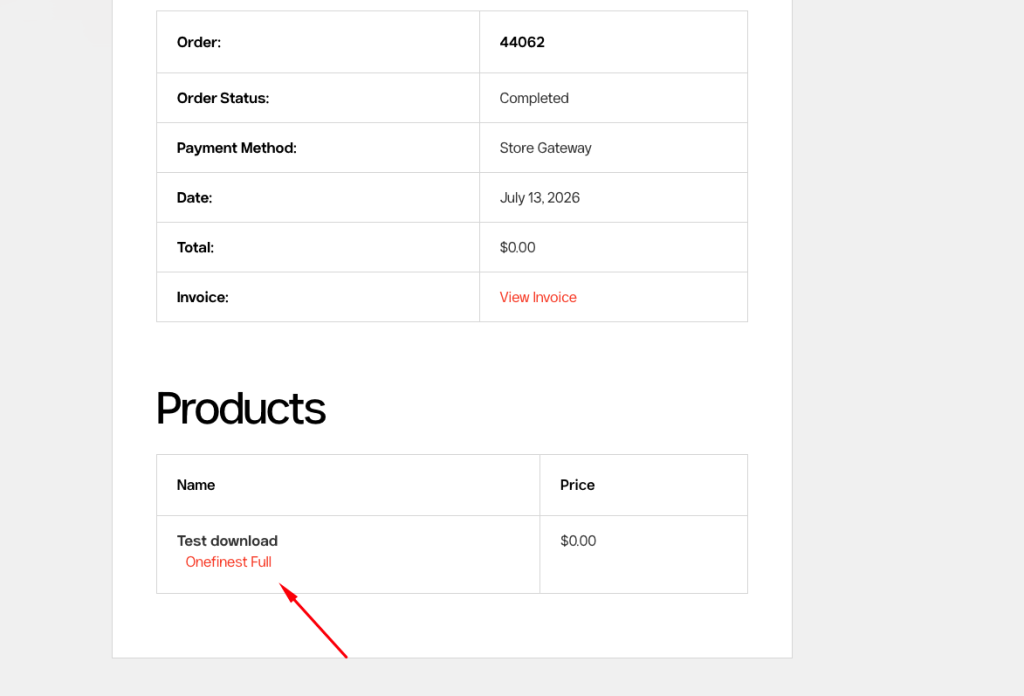
Scroll down to the products section, and you’ll find the download link for the theme package -> Download this theme package.
Step 3. Upload the theme to the website.
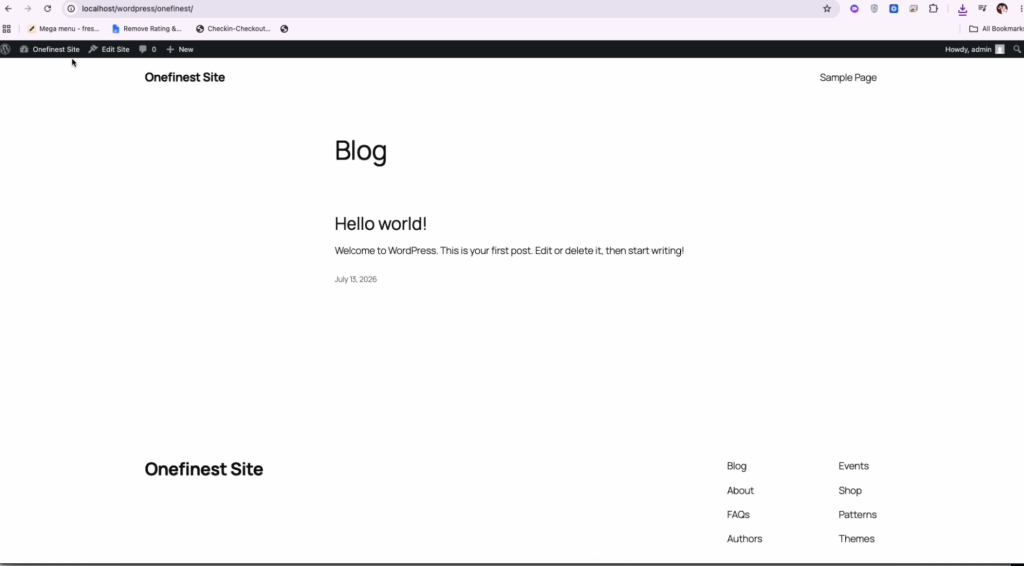
You need to have a website with WordPress installed, ideally one that doesn’t have any other plugins or data.
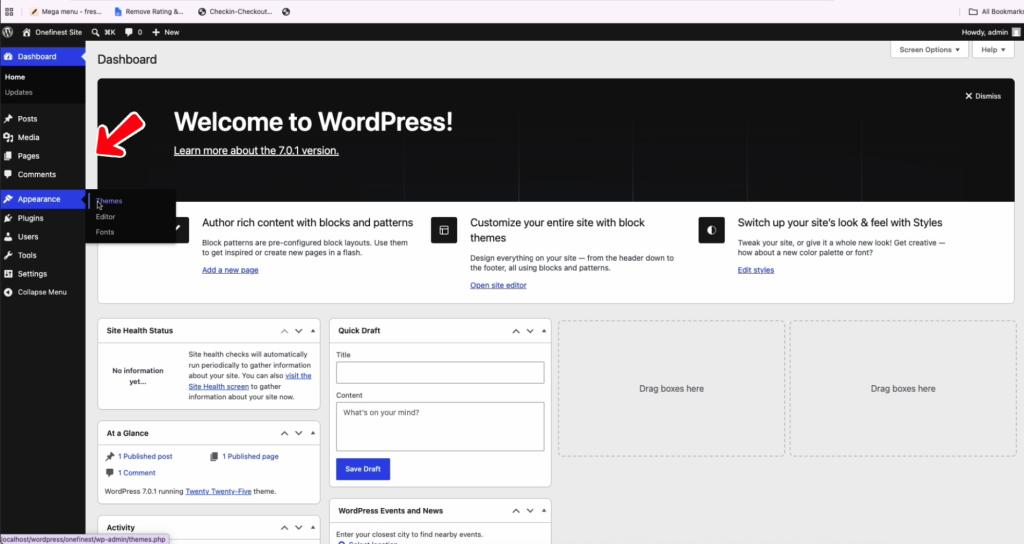
Access the admin dashboard -> Appearance -> Themes
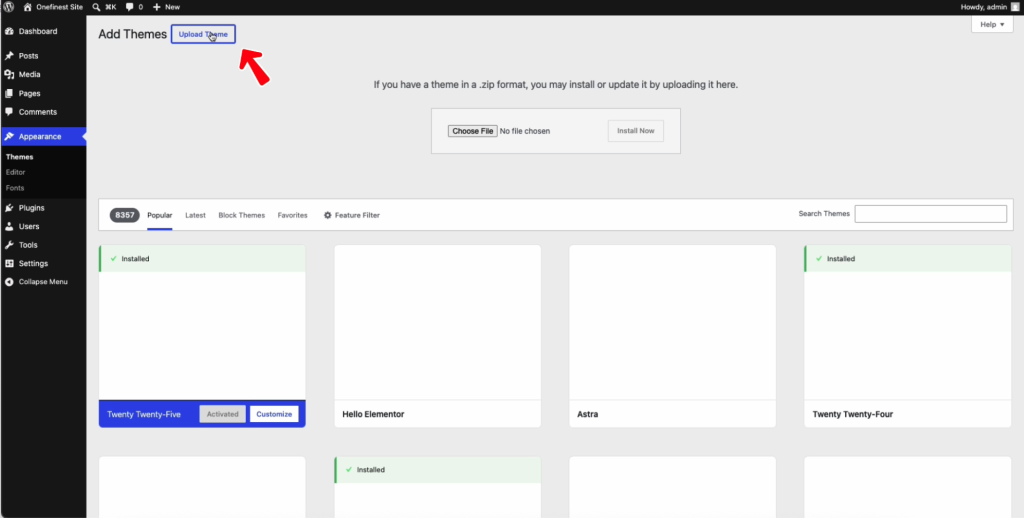
Click Add theme -> Upload theme
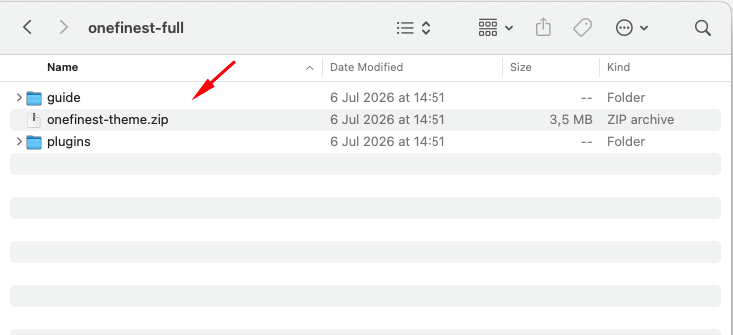
Unzip the theme package that you downloaded in step 2.
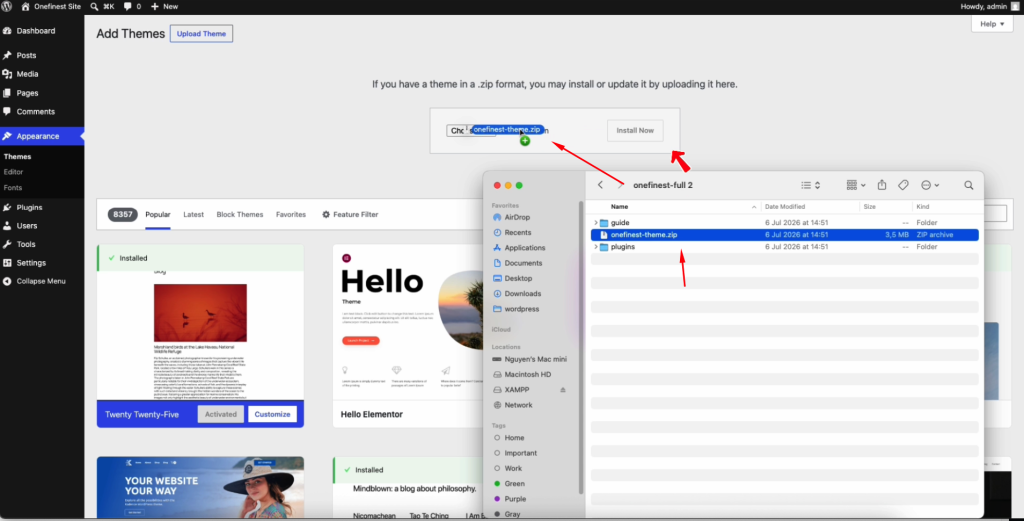
Then drag or select the theme file into the theme upload section -> Click Install Now to install the theme -> Active theme

Step 4. Install demo
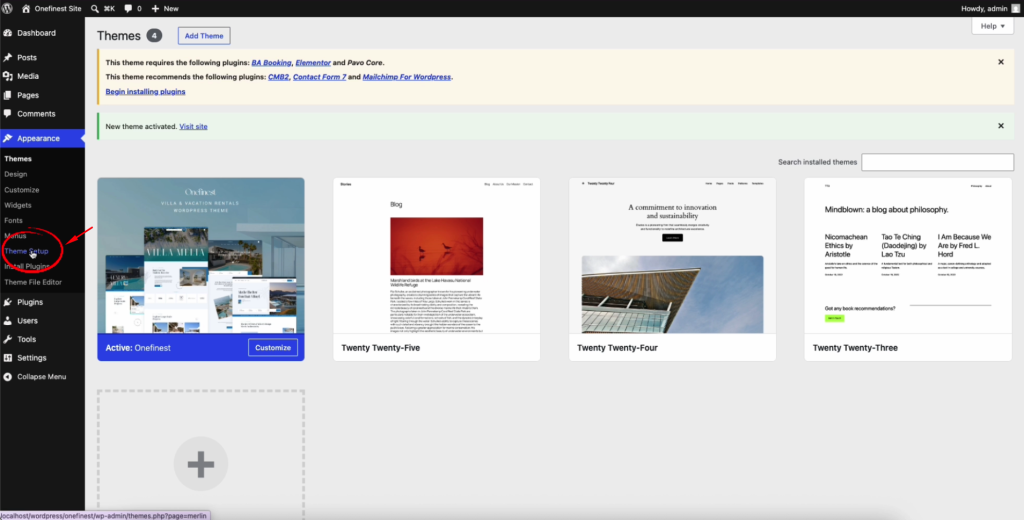
Go to Appearance -> Theme Setup
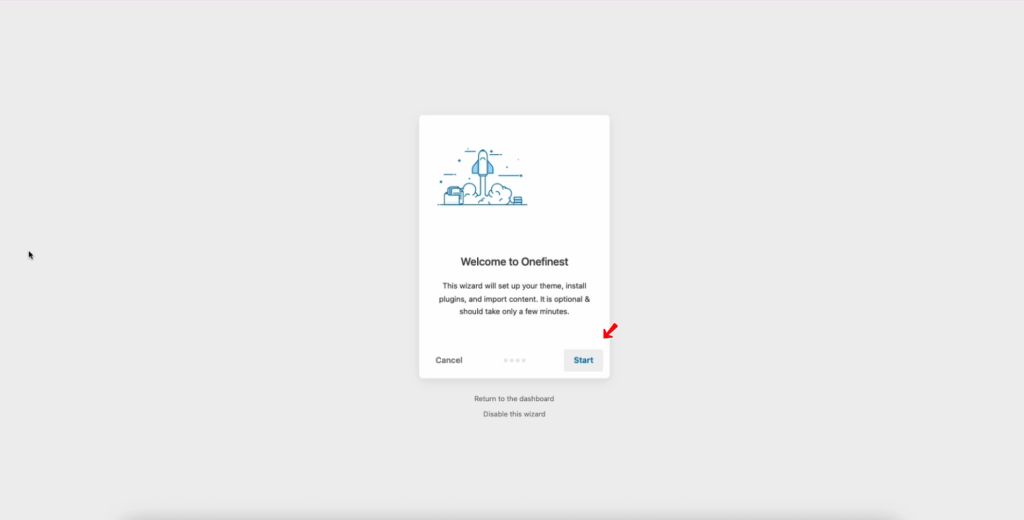
Click Start to install child-theme and plugins.
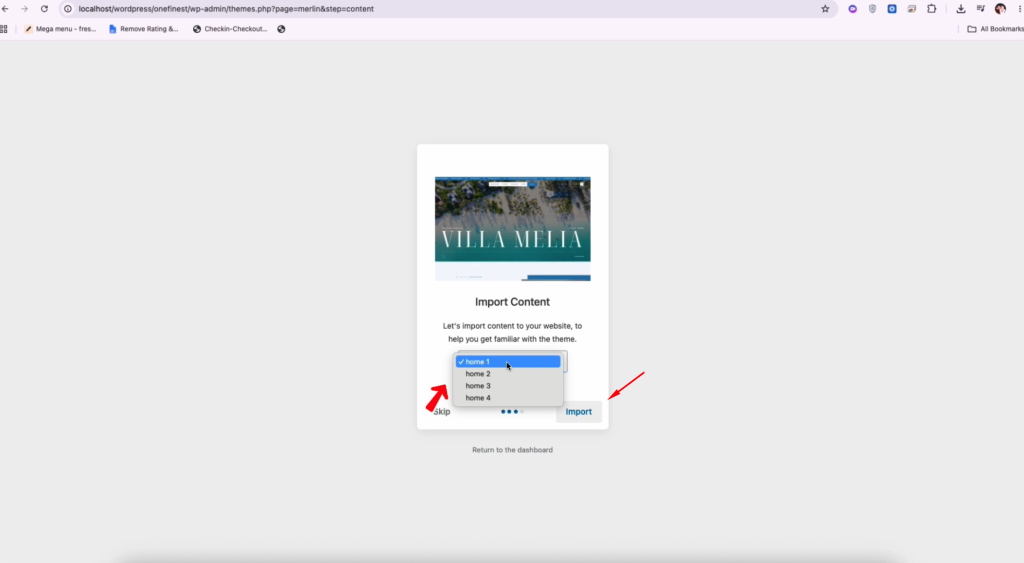
Select the homepage and proceed with importing demo data.
Wait approximately 2 to 10 minutes for the import process to complete.
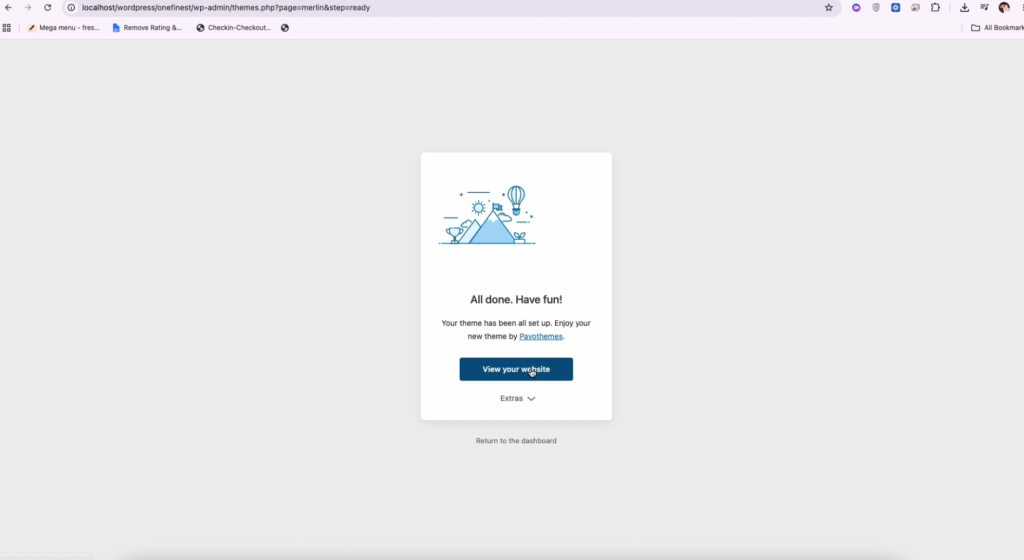
Once completed, you can click to view the imported demo website.
The entire installation process can be seen in the video below: