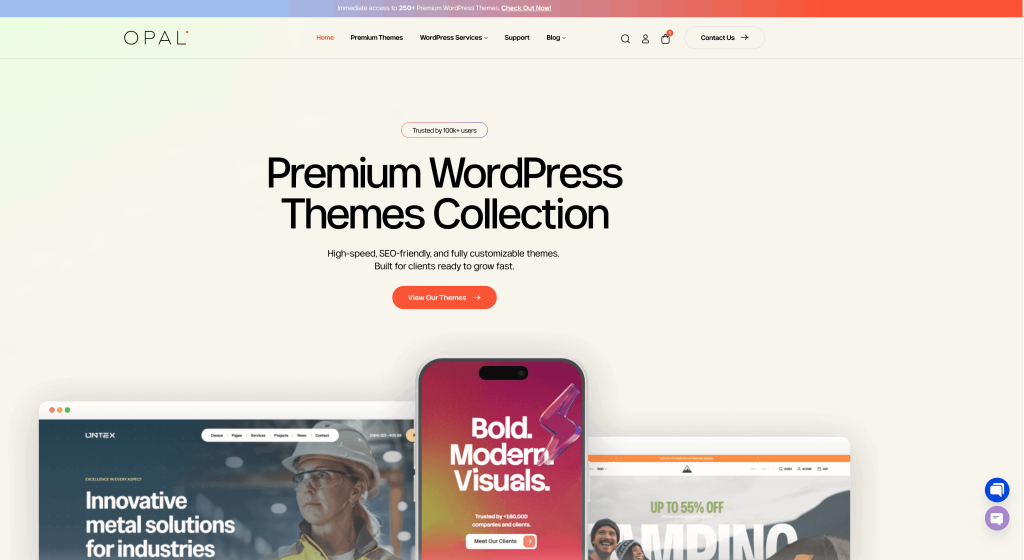
From the homepage, click Premium Themes in the navigation menu to browse our collection of premium WordPress themes.
Step 2. Choose Your Theme
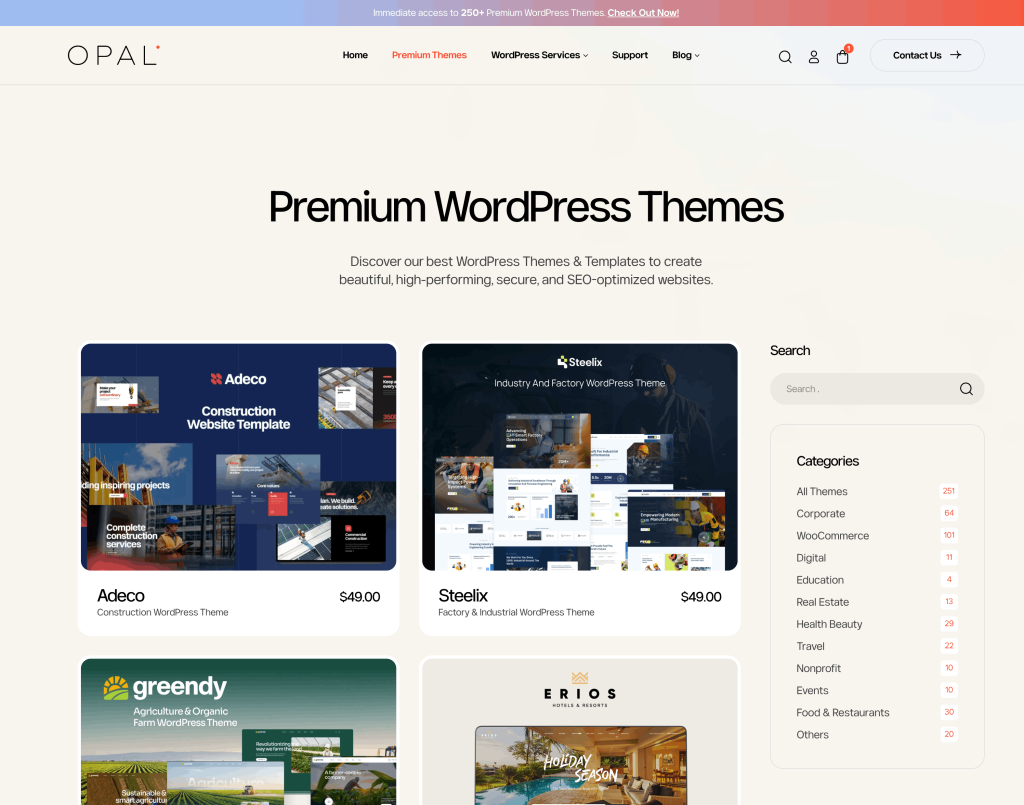
Navigate to the Premium WordPress Themes section and browse our collection of themes. You can use the search feature or browse by category to find the theme that best fits your project.
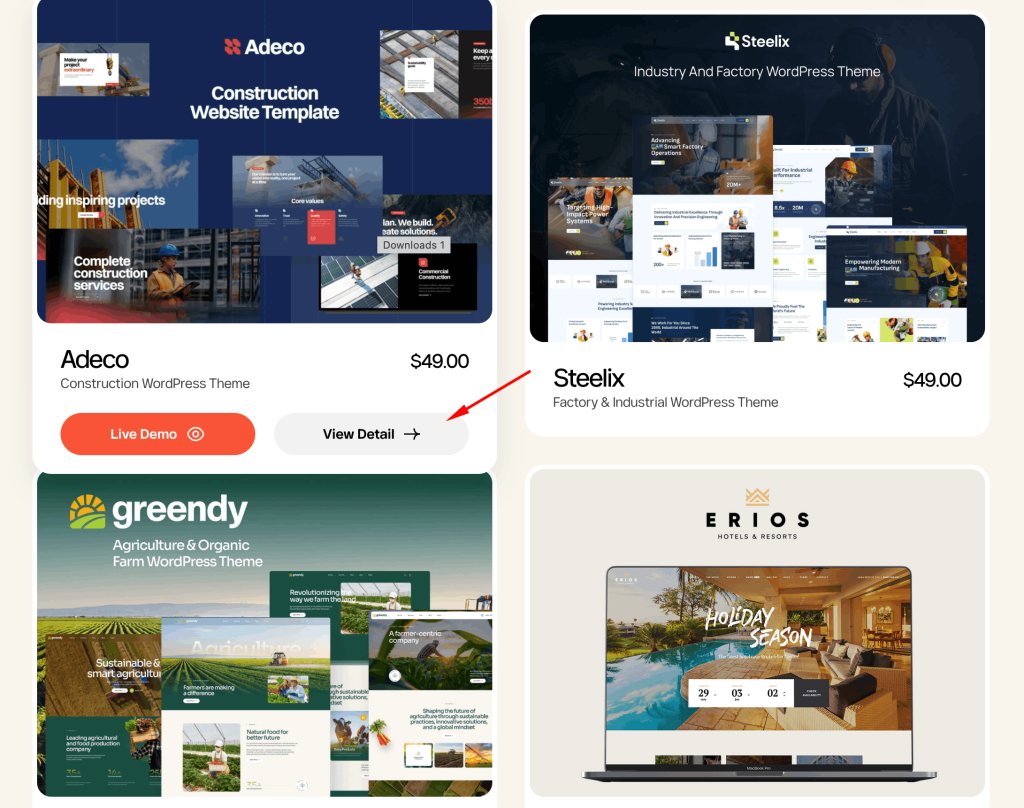
Once you find a theme you are interested in, click View Detail to review its features, demos, screenshots, and specifications.
Step 3. Proceed to Checkout
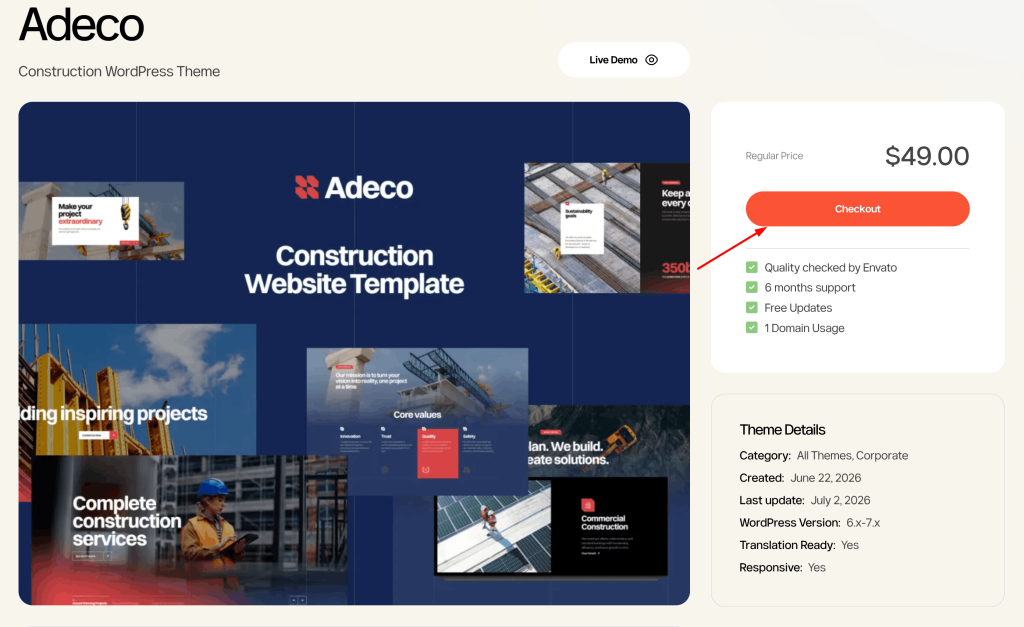
On the theme detail page, you’ll find the theme information, price, and included features.
Click the Checkout button to continue with your purchase.
Step 4. Apply a Discount Code (Optional)
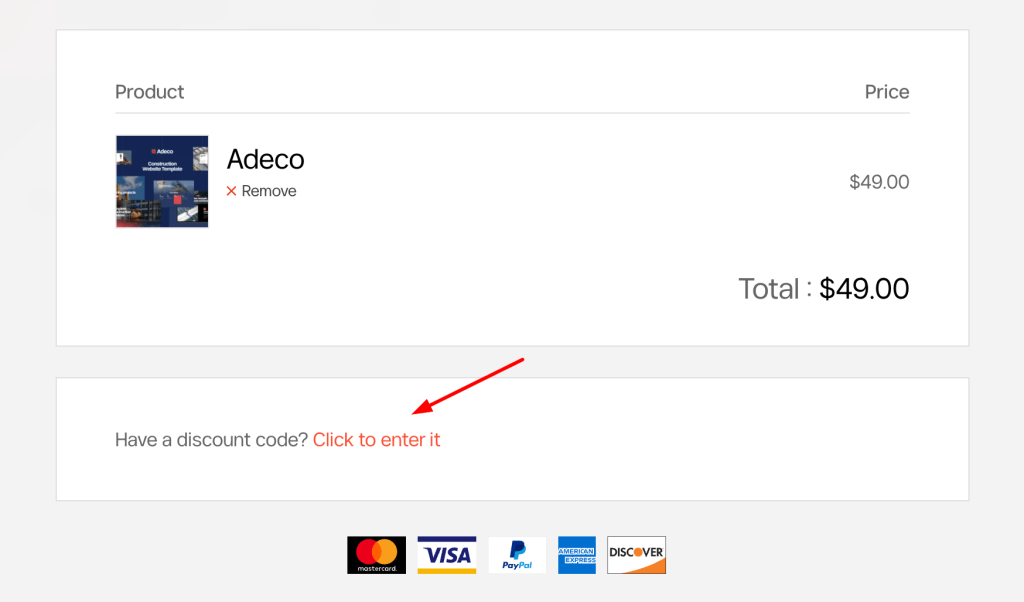
If you have a promotional or coupon code, click “Click to enter it” on the checkout page.
Enter your coupon code and apply it before completing your payment.
Step 5. Enter Your Personal Information
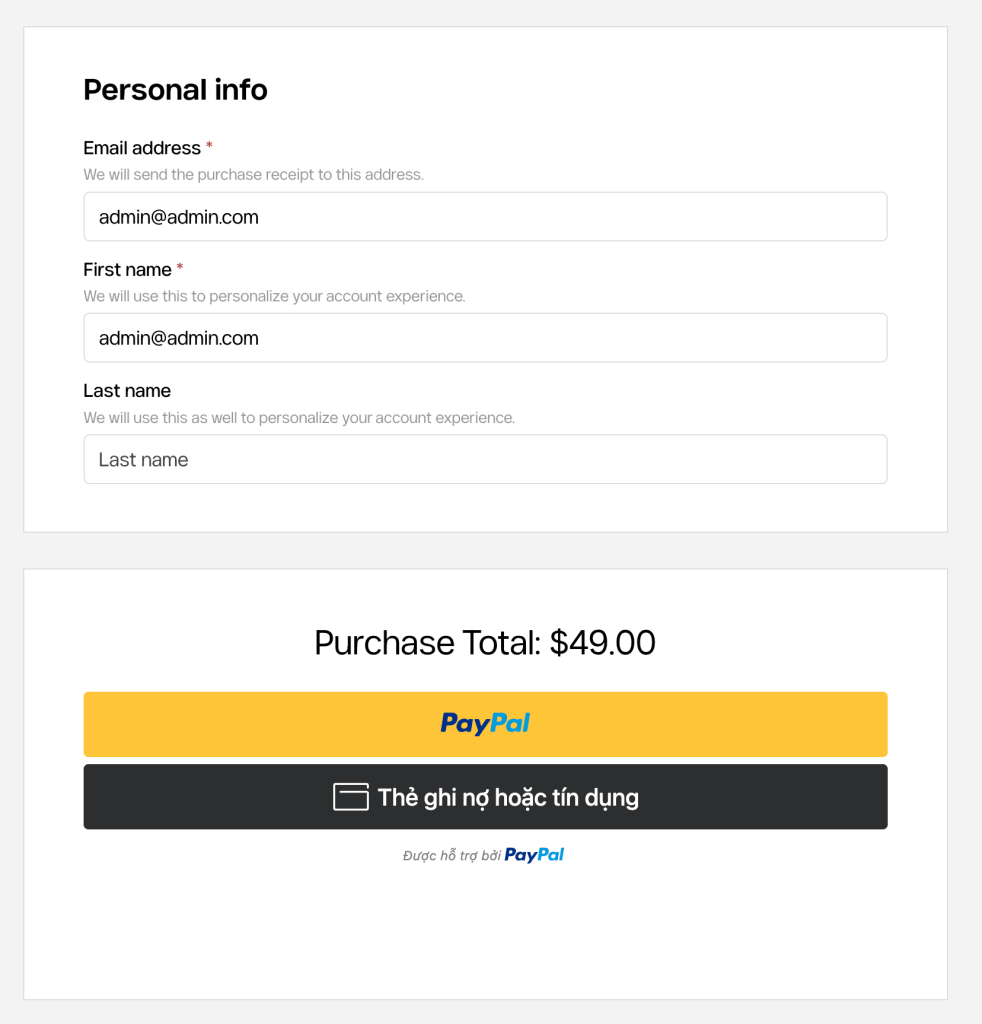
Fill in the required information, including:
Email Address
First Name
Last Name
Your email address will be used to send your purchase confirmation and download information.
Step 6. Complete Your Payment
Review your order total and choose your preferred payment method.
Currently supported payment methods include:
PayPal
Debit / Credit Card
Follow the payment instructions to complete your order securely.
Step 7. Receive Your Theme
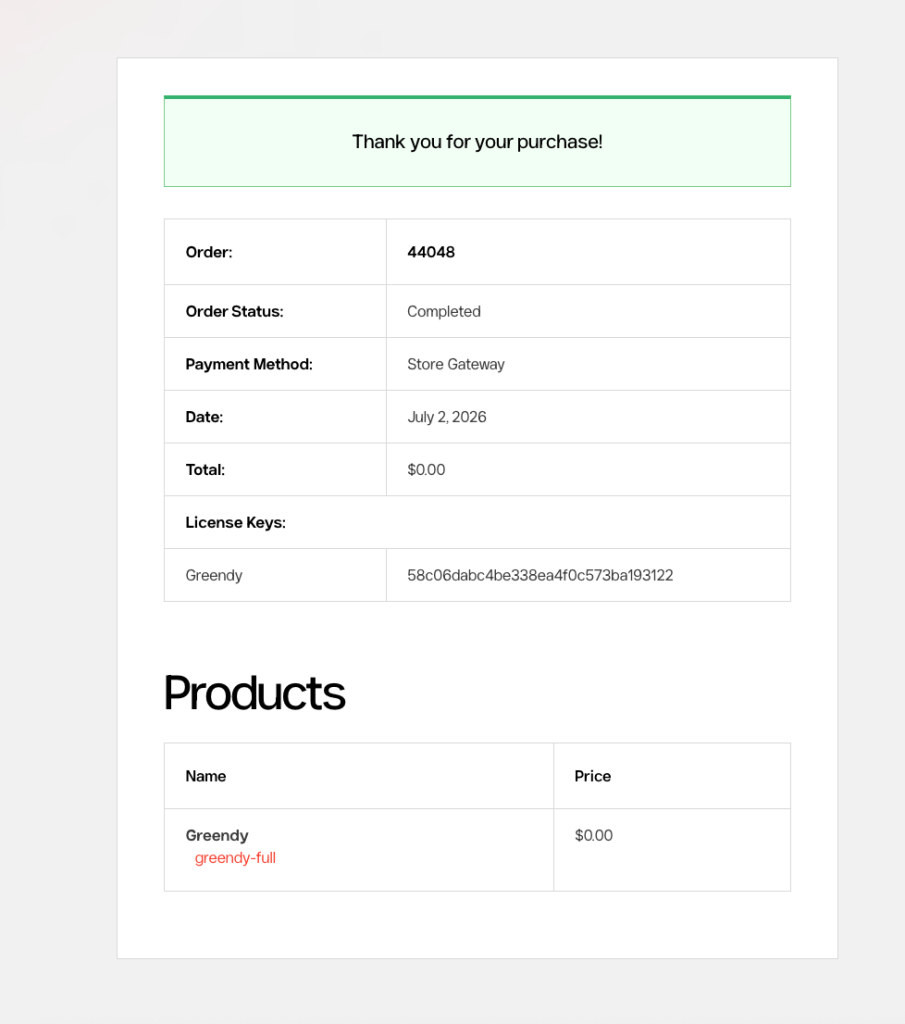
Once your payment has been successfully processed, you’ll receive a confirmation email from WPOpal.
The email includes:
✅ Order confirmation
✅ Download link(s) for your purchased theme
✅ Account login information
✅ License and purchase details
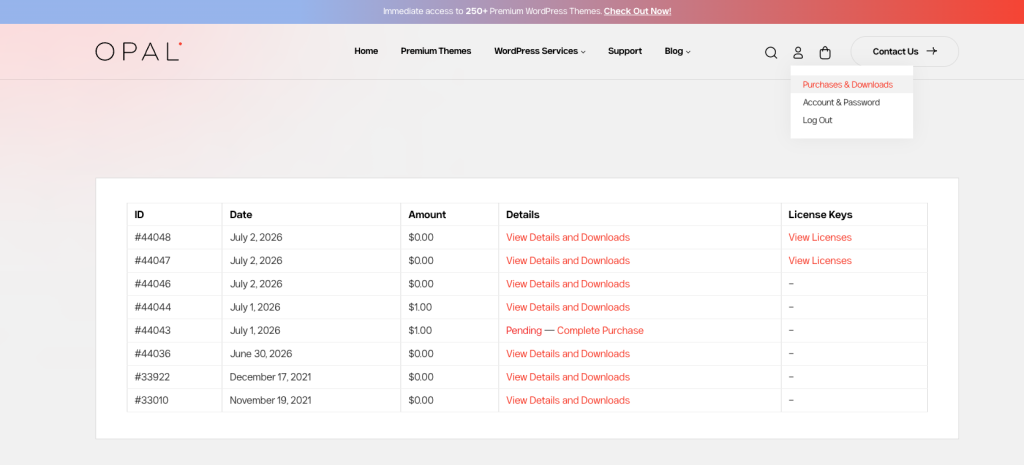
You can also log in to your WPOpal account at any time to access your purchased products and download them again.