
After purchasing a theme from wpopal.com, you can activate support through our customer support system at https://support.wpopal.com/
Please see the instructions below to activate theme support services on our ticketing system:
Step 1: Log in and get your theme key
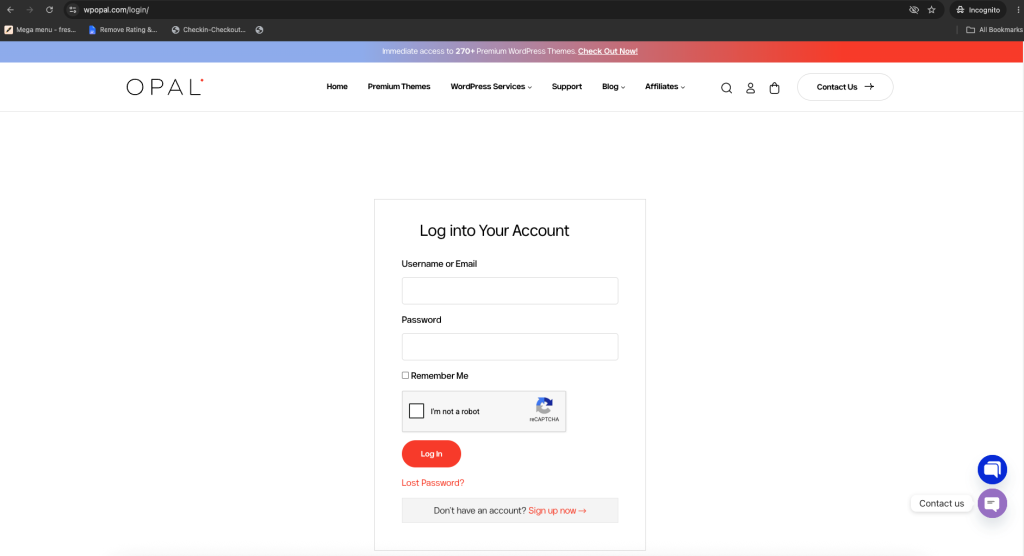
Log in to your account on the website: https://wpopal.com/login/
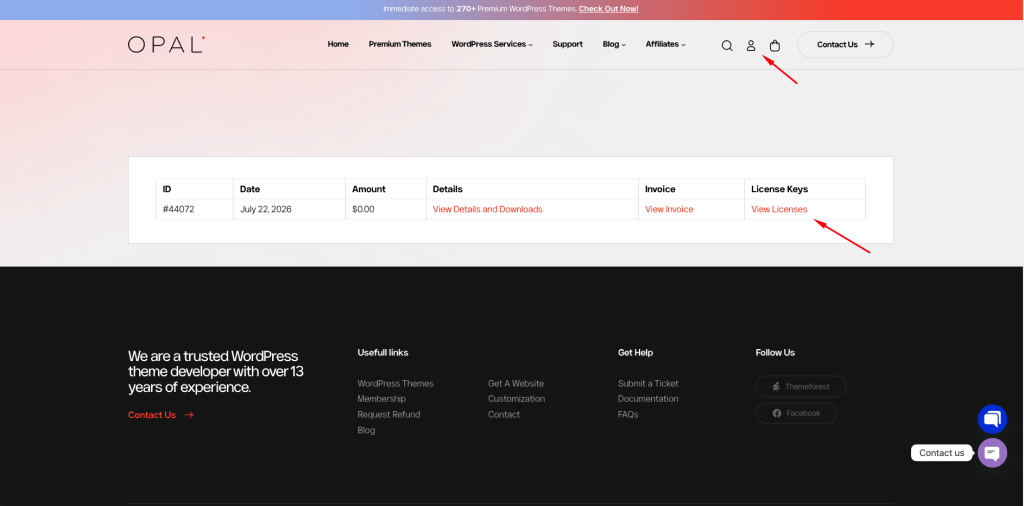
Click on Purchases & Downloads on the account icon to see a list of your purchased themes -> Click on View Licenses.
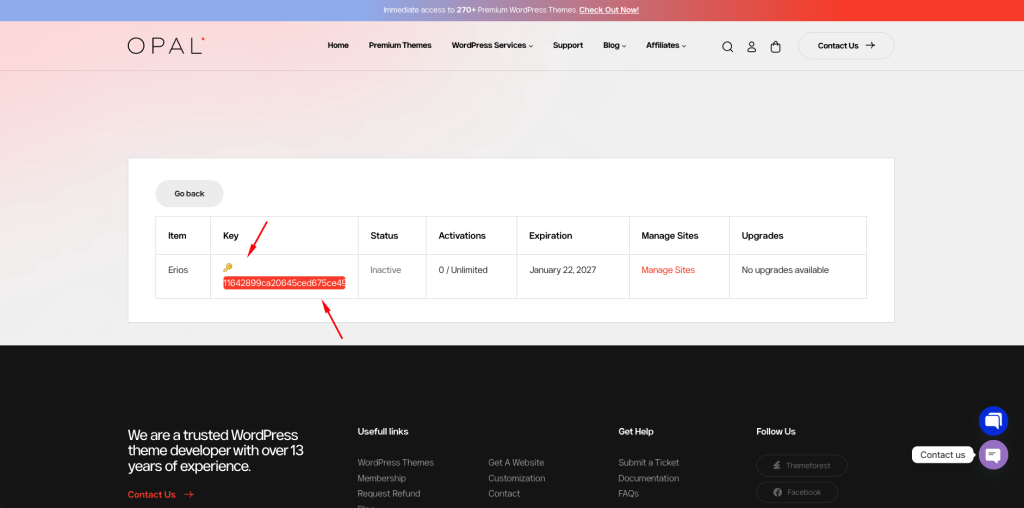
Click on the key icon to view and copy this code:
Step 2: Activate the purchase code and create an account.
Access the support website: https://support.wpopal.com/
-> Click to Login/Register:
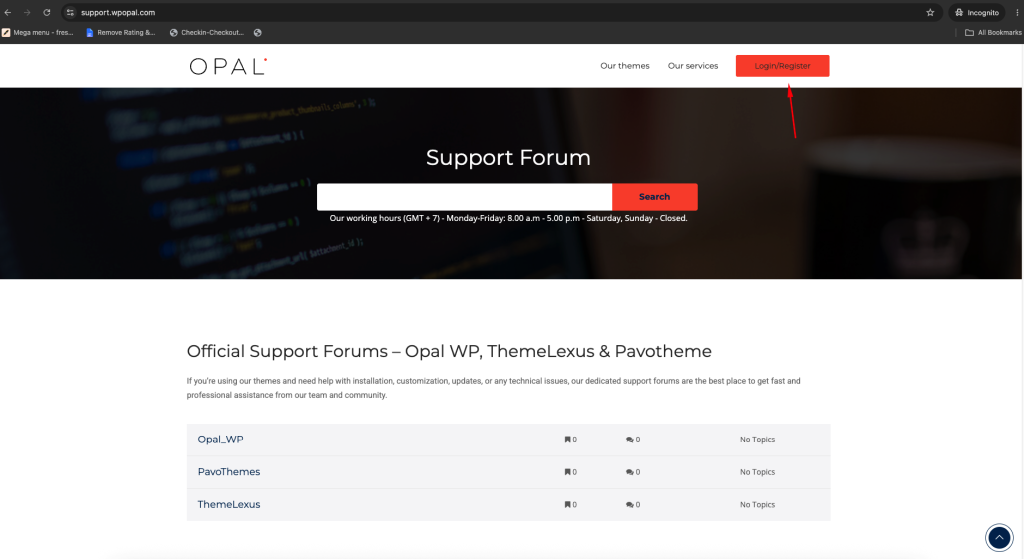
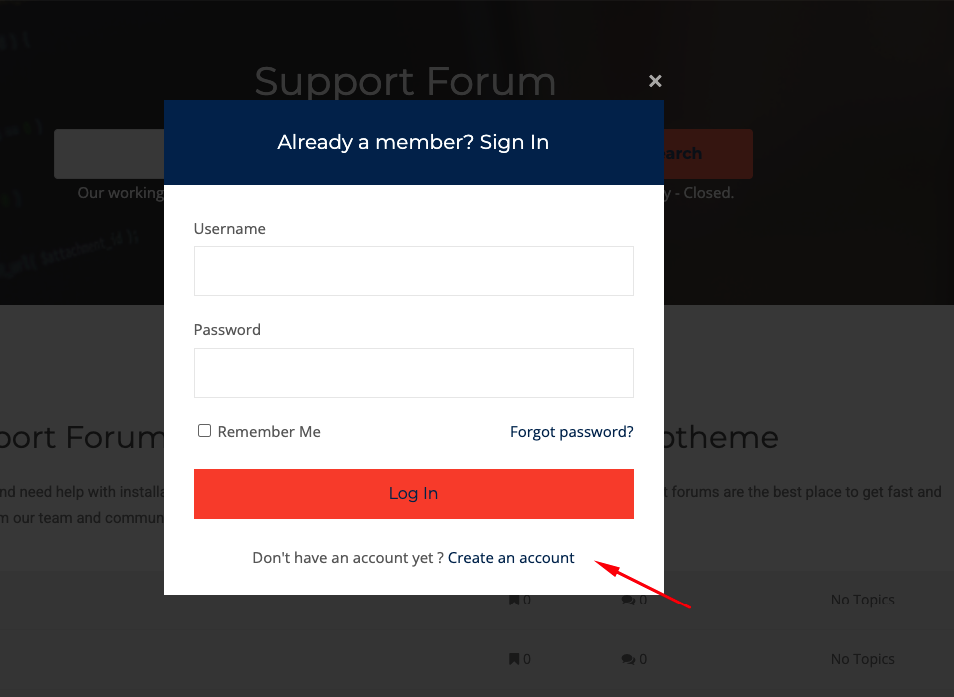
-> After the login popup form appears, click on “Create an account” to create an account:
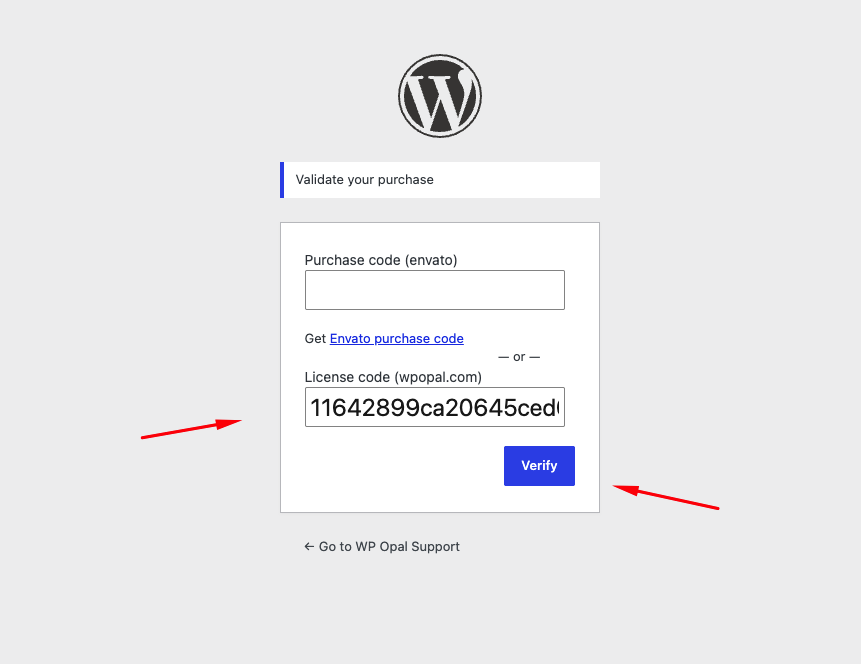
Enter the purchase code you copied in step 1 into the License code input field (wpopal.com) and click Verify:
If your purchase code is correct, the information will be displayed as “Purchase Information”.
Then please enter the account name and email address you wish to use:
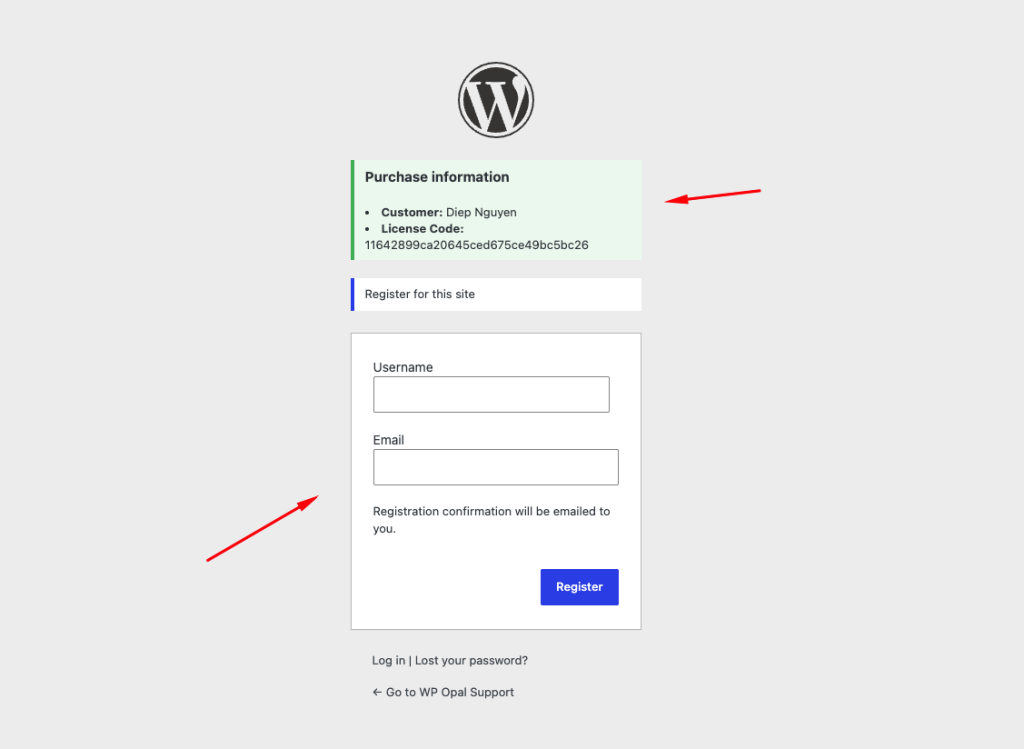
The activation code will be sent to the email address you registered. Please check your email and click on the link to activate your account and create a password.
Create a new password and log back into the support website: https://support.wpopal.com/wp-login.php
Step 3: Create a support ticket
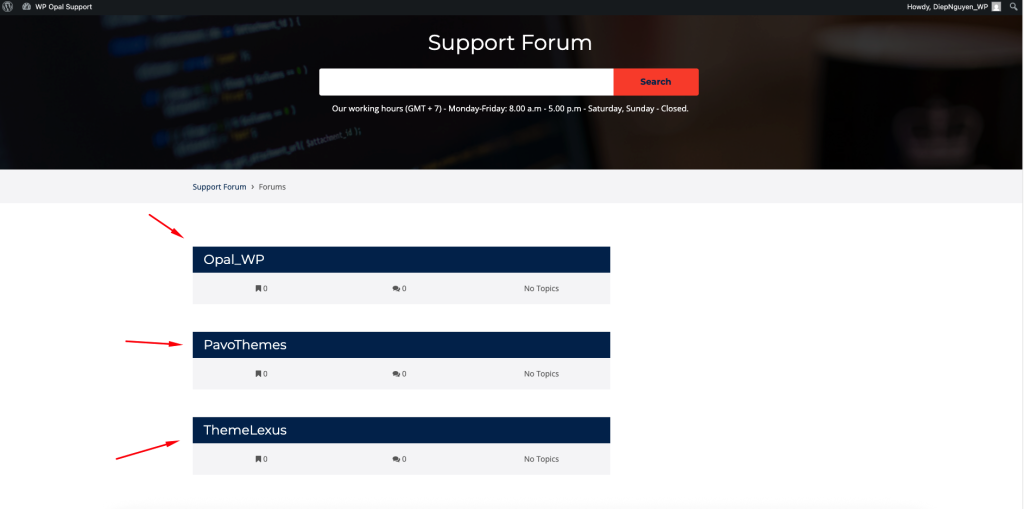
After logging into the support system, please select one of the three forums to create a support ticket:
Create a support topic -> Fill in all the required information in the support request form and click Submit:
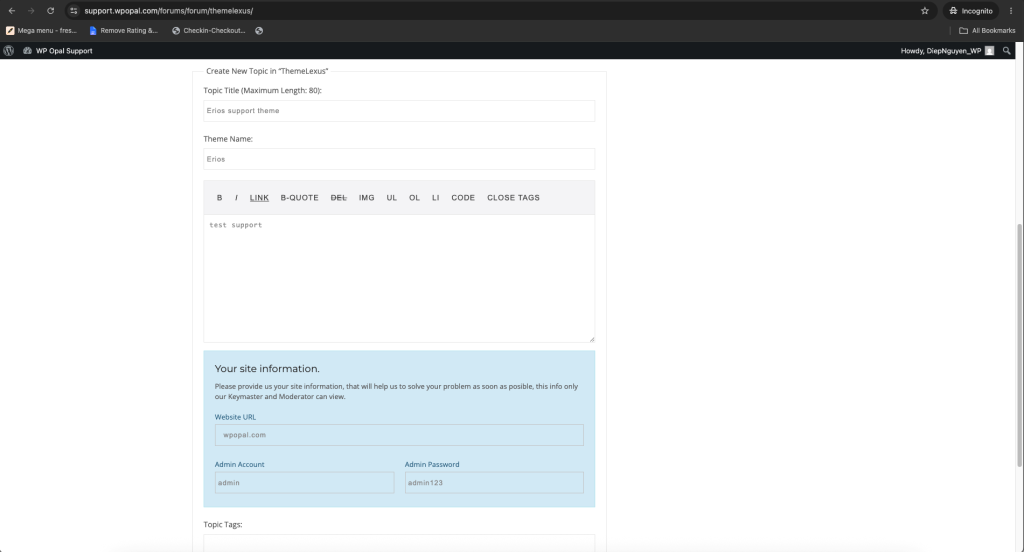
After clicking submit, your topic will be created and sent to the support system to await a response.
The response time for your ticket is approximately 12-48 hours due to time zone differences.
You can track your tickets in My topic:
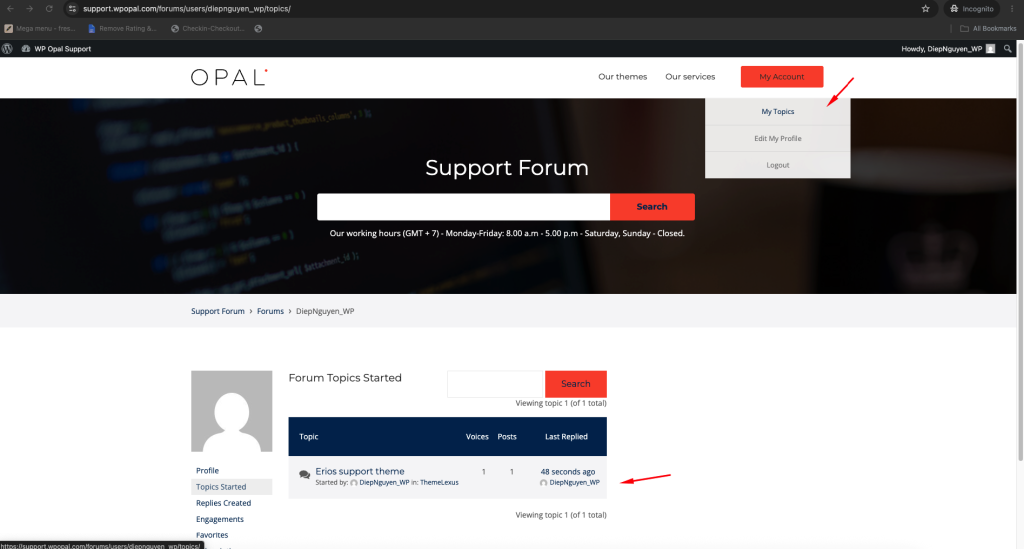
When the system responds to your ticket, a notification email will also be sent to you so you can check it.